
Operating Manual
Table of Contents
Product Description ot the Machine
Intended Use
The ONE optical inspection system with all cameras is intended exclusively for the inspection of pipes, shafts, and cavities.
Use the system only for these applications.
Operation is permitted only by qualified personnel.
The ONE will only be used as intended if all specifications contained in this operating manual are:
- for safety
- for operation
- for maintenance and servicing
Improper use
Any other or further use will be considered improper use.
A contaminated inspection system must not be used for fresh water applications without prior cleaning and disinfection in accordance with legal requirements.
A system is considered contaminated if it has come into contact, in whole or in part, with wastewater, sewage, process water, or hazardous environments.
The inspection system is not suitable for medical or veterinary purposes. The manufacturer accepts no liability for personal injury or property damage resulting from improper use. Further information can be found in the Product Liability Act.
In the event of improper use, the manufacturer’s liability is void under the Product Liability Act.
User Information
Any other or further use is considered improper. This operating manual has been prepared in accordance with the principles of technical writing and the minimum legal requirements of the Machinery Directive 2006/42/EC, which serves as its basis. This operating manual is intended for the operator and user of the system. Personnel may perform work in accordance with their qualifications. Specific qualifications and descriptions required for the respective area of application are not included in this operating manual.
There are no accompanying documents for this operating manual.
Purpose
Copyright
Manufacturer information
The ONE optical push/pull inspection system is manufactured by:
NSP3CT.PRO GmbH
Am Galgenbichl 14
87509 Immenstadt
Germany
Tel.: +498312053060
E-Mail: info@nsp3ct.pro
Safety instructions
The ONE optical inspection system complies with current safety standards. Nevertheless, improper use can pose risks to people and property.
Use only if:
- The system is technically sound.
- Wear parts have been inspected before use.
- It is used as intended.
- The user acts with safety awareness and follows the operating instructions.
- Legal regulations and standards are observed.
Important Notes:
- No modifications or alterations except with original accessories and spare parts.
- Visually inspect for damage before each use.
- Repairs only by NSP3CT:PRO or authorized service centers. Charge the system exclusively with a USB-C charger.
Personal protective equipment
The ONE system is a handheld electrical device without its own drive or exposed output. Due to this design, there are no particular hazards posed by the device itself.
However, additional personal protective equipment may be required when performing work with the optical inspection system. The necessary protective equipment can be found in the applicable safety and hygiene regulations and relevant norms and standards for the work to be carried out.
Technical Data
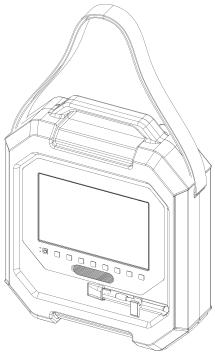
NSP3CT ONE
| Resolution | 1080p30 |
| Power supply | USB-C max. 20V DC |
| Housing material | ABS |
| Dimensions | 460x390x160mm |
| Sliding cable/sliding rod | 6/6.6mm with 30m length | Weight | 6.5 kg/7 kg | Operating temperature | 0-40°C | Protection class | IP54 |
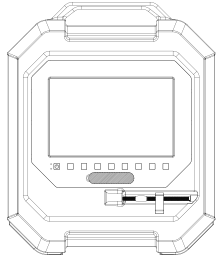
Camera C10 (10 mm)
| Resolution | 1080p25 |
| Diameter | 10mm |
| Focus area | 0-4 cm |
| Protection class | IPX8 |
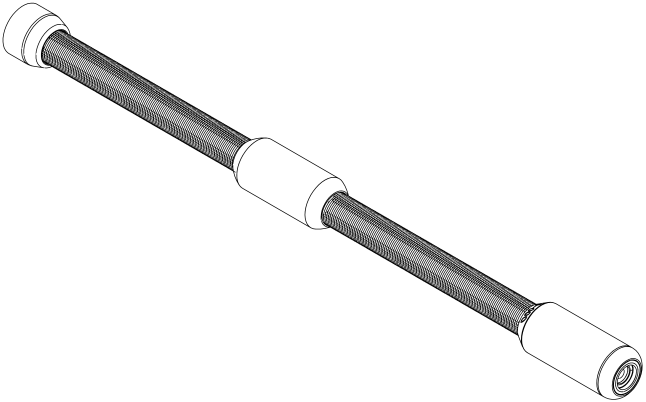
Technische Daten Kamera C18 (18 mm)
| Resolution | 1080p25 |
| Diameter | 18mm |
| Focus Area | 0-8 cm |
| Protection class | IPX8 |
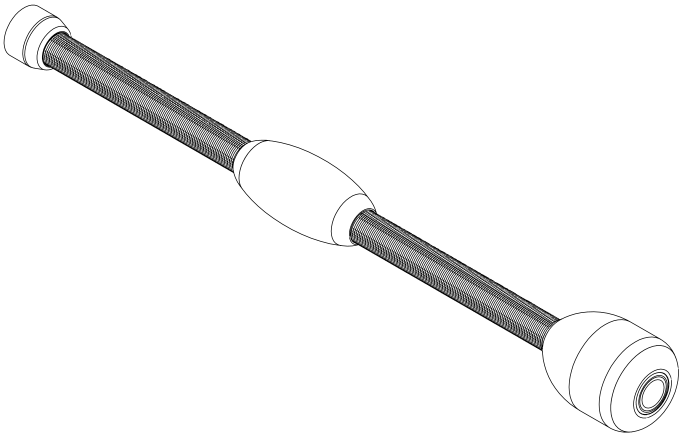
Product Overview
Accesories
-
Camera 10mm (Standard)
-
USB-C Charging cable
-
TORX angle wrench for changing the Sliding ball/Camera Centering Guide
-
Sliding ball/Camera Centering Guide for the corresponding camera head
-
Shoulder strap

Connections
- SD card for memory expansion
- USB-A port for connecting a USB flash drive
- USB-C port for charging the device

Physical Buttons

Cameras
Commissioning
Initial commissioning
Before initial use, the system should be fully charged. Afterwards, it can be used directly without any further setup.
Please note that the device should only be charged with a USB-C charger. Due to differing standards, proper charging can only be guaranteed with a USB-C charger (USB-C to USB-C).
Charging
Cable Security
Setup activity
Please install a camera before commissioning.
- Place the unit switched off on a clean, soft surface – avoid scratches
- Remove the dust cap from the drum
- Loosen the screw (captive) using the supplied TORX wrench
- Remove the drum, ensuring that the camera or cable end is securely stowed inside.
- To reinstall, perform the steps in reverse order, ensuring that you insert the camera through the opening in the housing before beginning.
Note: Ensure that a cable reel is installed and securely screwed in.
Setup activity
- Open the cover and remove the camera
- Check the camera’s O-ring and insert it into the corresponding part
- Reattach the cover and check that the camera is securely seated
Notice
Setup Activity
To center the camera in the inspection area, it can be equipped with a centering aid (sliding ball).
The centering aid is screwed on independently of the camera.
Assembly/Disassembly
- Unscrew the centering aid.
- Position the rear part over the camera spring.
- Screw on the front part and secure it.

Setup Activity
The system is equipped with a location transmitter for all cameras, offering three switchable frequencies: 512 Hz, 640 Hz, and 32 kHz.
The tracking frequency is changed by pressing and holding the touch button or the physical button. A short press activates or deactivates tracking. The color indicates the current status.The centering aid is screwed on independently of the camera.
Installation/Disinstallation
- The camera head can be located using the point tracking method:
- At 512 Hz and 640 Hz, tracking occurs in parallel with the video image.
- At 32 kHz, the video image is deactivated.
Operation/user interface
Overview


Notice
Winding and unwinding the push/pull cable/push rod
- Remove the camera head from the locking mechanism at the bottom
- The cable is ready for use and can be extended and retracted. To extend it, pull the required length of cable/rod out of the housing. To retract it, push the cable/rod back into the housing.
- Secure the camera in the housing after use

Notice
Caution: The cable may create a tripping hazard at the point of use.
- Only remove the required amount from the housing
- Do not create loops
- Rewind any unused cable back into the housing
General Information
Main screen

Button Bar

Sidebars

Overview of the function keys

Power
Long press (physical or touch): The system switches on or off.
Lighting
- Long press physical button: Symbol changes, light turns off.
- Short press physical button: Changes light levels.
- Long touch touch control: Opens slider to adjust light intensity (0%-100%).
- Short touch touch control: Changes light levels.
Locating
- Long press physical button: Change frequency (33kHz/512Hz/640Hz).
- Short press physical button: On/Off.
- Long touch of touch control: Opens slider to adjust frequency.
- Short touch of touch control: On/Off.
Video Capture
- Press record button (physical or touch): Recording starts, timecode begins. Button changes to the “Pause” symbol.
- Press pause button (physical or touch): Recording pauses, timecode pauses. Button changes to the “Record” symbol.
Stop
Stop button (physical or touch): Stop recording and save.
Image Capture
Image Capture Button (physical or touch): Image is being captured
Gallery
- Grid View: Content is displayed in a grid view with small previews.
- Tap Preview Image: Show larger preview and media information.
- Long Touch: Select file, choose multiple files.
Screen Mode
Short press: Toggles between a light and dark button scheme
Settings
Short press: Opens the menu with the System settings.
Physical Buttons
Function: The functions of the physical buttons are analogous to the corresponding touch function button shown above them on the screen.
Power
On/Off Symbol
Long press (physical or touch): The system switches on or off.
Lighting
Lightbulb Symbol
- Long press physical button: Symbol changes, light turns off.
- Short press physical button: Changes light levels.
- Long touch touch control: Opens slider to adjust light intensity (0%-100%).
- Short touch touch control: Changes light levels.
Location
Probe Symbol
- Long press physical button: Change frequency (33kHz/512Hz/640Hz).
- Short press physical button: On/Off.
- Long touch of touch control: Opens slider to adjust frequency.
- Short touch of touch control: On/Off.
Video Capture
Record/Circle Symbol
- Press record button (physical or touch): Recording starts, timecode begins. Button changes to the “Pause” symbol.
- Press pause button (physical or touch): Recording pauses, timecode pauses. Button changes to the “Record” symbol.
Stop
Stop/Square Symbol
Stop button (physical or touch): Stop recording and save.
Image Capture
Photo Camera Symbol
Photo Capture Button (physical or touch): Image is being captured
Media Preview
Gallery Symbol
- Grid View: Content is displayed in a grid view with small previews.
- Tap Preview Image: Show larger preview and media information.
- Long Touch: Select file, choose multiple files.
Screen Mode
Light/Dark Symbol
Short press:Toggles between a light and dark button scheme
Settings
Gear Symbol
Short press:Opens the menu with the System settings.
Physical Buttons
Function: The functions of the physical buttons are analogous to the corresponding touch function button shown above them on the screen.
Video and Image Capturing Mode

Text Inscription
The following information will be permanently written to the recorded video:
- First line: Date of recording
- Second line: Time of recording
These settings can be accessed in the “Settings” menu on the main screen.
Timecode
Play
- Press Play button Playback starts. Button changes to the “Pause” symbol.
- Press Pause button: Pauses recording, timecode paused. Button changes to the “Play” symbol.
To-Start
Press the To-Start button: Playback will restart from the beginning of the video; the timecode will jump to 00:00:00
Fast Reverse
Press the rewind button: The video will rewind quickly until the button is released.
Fast Forward
Press the fast forward button: The video will play quickly until the button is released.
To-End
Press the To-End button: Playback will stop and the timecode and cursor jump to the end of the video
Set Marker
Press marker button: Inserts a timecode marker into the video at the current position, which can later be navigated to.
Delete
Press the delete button The selected file will be deleted from the device memory.
Back to the Home Screen
Short press: Return to the main screen
Oberer Bildschirmbereich
Texteinschreibung
Folgende Angaben werden fest in das aufgezeichnete Video geschrieben:
- Erste Zeile: Datum der Aufnahme
- Zweite Zeile:Uhrzeit der Aufnahme
Die Einstellungen hierzu sind im Menü “Einstellungen” vom Hauptbildschirm erreichbar.
Timecode
Fest ins Video geschriebener, fortlaufender Timecode
Play
Play/Triangle Symbol
- Press Play button Playback starts. Button changes to the “Pause” symbol.
- Press Pause button: Pauses recording, timecode paused. Button changes to the “Play” symbol.
Back-to-Start
Line/Arrow Back Symbol
Press the To-Start button: Playback will restart from the beginning of the video; the timecode will jump to 00:00:00
Fast Reverse
Double Arrow Back Symbol
Schnellrück-Taste drücken: Video spielt schnell zurück, bis die Taste wieder losgelassen wird.
Fast Forward
Double Arrow Symbol
Press the fast forward button: The video will play quickly until the button is released.
To-End
Arrow/Line Symbol
Press the To-End button: Playback will stop and the timecode and cursor jump to the end of the video
Set Marker
Video Marker Symbol
Press marker button: Inserts a timecode marker into the video at the current position, which can later be navigated to.
Delete Clip
Trash Can Symbol
Press the delete button The selected file will be deleted from the device memory.
Back to the home screen
Return Symbol
Short press: Return to the main screen
Gallery features

Media Overview
Thumbnails
Tap preview image: Show larger preview and media information.
TIP: Long press to select one file, tap other preview images to select multiple files.
Play
Press play button Playback starts
Save externally
Press the download button The selected file will be downloaded to an external storage device.
Delete
Press the delete button The selected file will be deleted from the device memory.
Media Preview
Media Information
Displays all important meta information for the selected video
- Type:Video or Image
- Name:Pre-set recording name with prefix
- Audio:Recorded audio frequency
- Duration:Playback duration of the selected video
- Date:Date of recording
- Time:Time of recording
- Quality:Resolution of the recorded video/image
- Markers:Number of markers set in the video
Back to the home screen
Short press: Return to the main screen
Media Overview
Thumbnails (Preview Images)
Tap preview image: Show larger preview and media information.
TIP: Long press to select one file, tap other preview images to select multiple files.
Media Preview
Video preview, controls, and file information for the selected video
Play video
Playback page: Start, pause, fast forward, and rewind video.Safe video externally
Press the download button The selected file will be downloaded to an external storage device.
Delete video
Press the Trash Can button The selected file will be deleted from the device memory.
Media Information
Displays all important meta information for the selected video
- Type:Video or Image
- Name:Pre-set recording name with prefix
- Audio:Recorded audio frequency
- Duration:Playback duration of the selected video
- Date:Date of recording
- Time:Time of recording
- Quality:Resolution of the recorded video/image
- Markers:Number of markers set in the video
Back to Home Screen
Short press: Return to the main screen
Funktionstasten
Abspielen
Abspielen-Symbol
- Abspieltaste drücken Wiedergabe startet. Button wechselt zum „Pause”-Symbol
- Pause-Taste drücken: Aufnahme pausieren, Zeitcode pausiert.Button wechselt zu, „Wiedergabe”-Symbol
Pause
Pause-Symbol
Pause-Taste Wiedergabe vorübergehend anhalten
Stopp
Stopp-Symbol
Stopp-Taste Wiedergabe stoppen
Extern speichern
Download-Symbol
Download-Taste drücken Ausgewählte Datei wird auf ein externen Speichermedium geladen.
Zurück zum Startbildschirm
Return-Symbol
Kurzes Drücken: Rückkehr zum Hauptbildschirm
Settings (Menu Structure)

STORAGE
- Select storage: Automatic or manual (USB, SD).
- Format storage: Format SD card or USB drive.
- File prefix: Set a prefix for filenames.
WIFI
- Network settings: Select and connect to a Wi-Fi network.
- Connect to the app: View connection settings and the QR code.
Languages
Datum/Uhrzeit
- Format: ISO, 12 Stunden, 24 Stunden.
- Modus: Automatisch (NTP) oder manuell einstellen.
Video-Overlay
Screen Mode
Sidebars
System Information
- Firmware Update: Update the firmware.
- Serial Number: Display the serial number.
- System Usage: Display operating hours.
Cleaning
Please clean the system after each use to ensure a long service life. Please check the cable for damage after each use. Please note the following points:
- When winding up the system, clean the sliding eel with a cloth to prevent dirt from entering the system.
- Do not use solvents or high-pressure cleaners for cleaning.
Maintenance and Service
The device is generally low-maintenance. Always keep the device clean and clean it after use. We recommend having the device checked by your service partner at least once every 6 months, depending on usage. Should the device fail despite careful manufacturing and testing procedures, it must be repaired by an authorized service center or service partner.
For all inquiries and spare parts orders, please be sure to provide the device’s serial number and the information from the type plate.
Transport
Preparation of transport
Means of transport
After transportation
Notice
Troubleshooting
No image or poor image quality
- Check the connection between the camera head and the push rod
- Check the camera head lens.
- Check the push rod for damage.
No device function
Device take-back and disposal
1. Legal regulations
2. Environmentally sound disposal
3. Devices used purely for commercial purposes
Notice
Warranty conditions
Scope
Warranty period
Warranty services
1. Repair or Replacement: During the warranty period, defective devices will be repaired or replaced at our discretion.
2. Refund: If repair or replacement is not possible, we will refund the purchase price.
Exclusions
The following are excluded from the warranty:
- Damage caused by improper handling, installation, or use.
- Damage caused by external influences such as fire, water, or force majeure.
- Consumable parts, such as batteries, that are subject to natural wear and tear.
Procedure in the event of a warranty claim
- Contact: In case of a warranty claim, please contact our customer service department or your local service partner.
- Return: Please return the defective device to us along with a return form including a detailed description of the fault.
- Processing: After receiving and inspecting the device, we will initiate the necessary steps to fulfill the warranty claim.
Legal Notice
Our operating instructions, manuals, and software are protected by copyright.
Copying, reproducing, translating, or converting them into any electronic medium or machine-readable form, in whole or in part, without the prior written consent of NSP3CT.PRO GmbH is prohibited.
Publisher:
NSP3CT.PRO GmbH
Am Galgenbichl 14
87509 Immenstadt im Allgäu
Germany